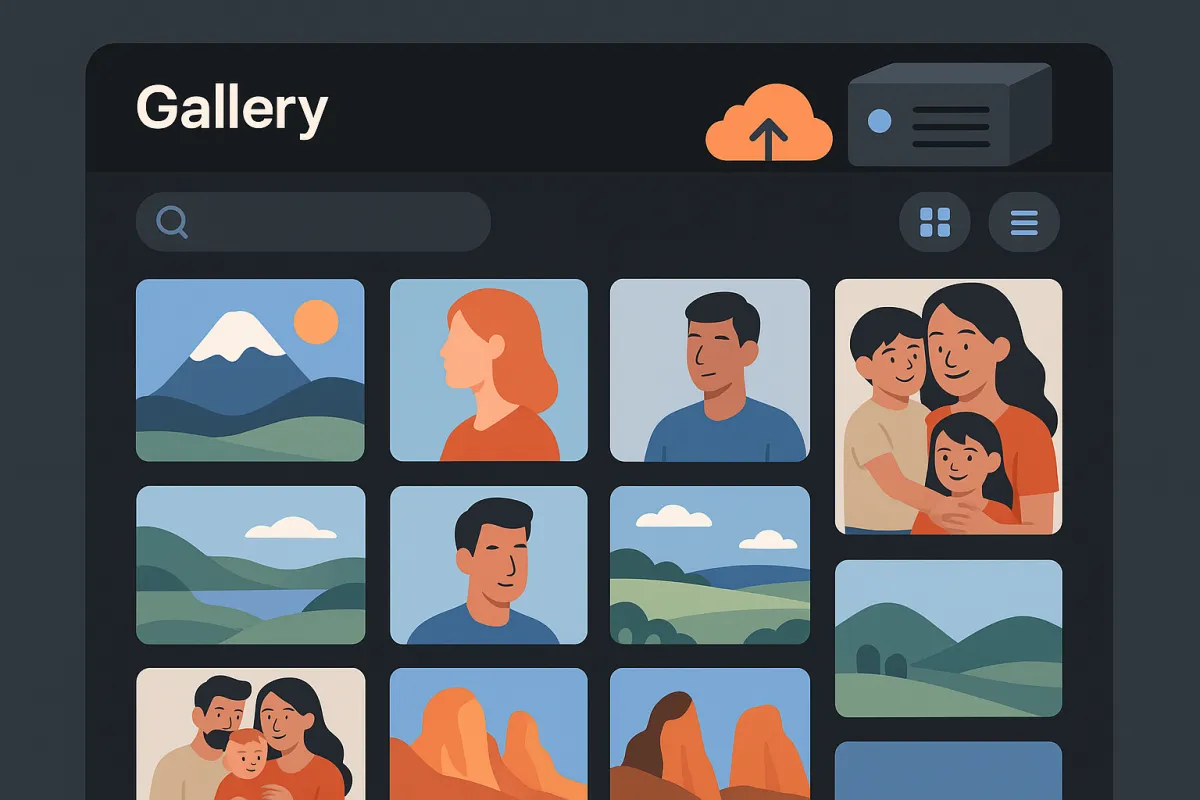
Google Foto è comodo — fino a quando non raggiungi il limite di archiviazione, noti il tuo volto addestrato dall'IA apparire negli annunci, o realizzi che Google può cambiare i suoi termini in qualsiasi momento. Nel 2024, Google ha ridotto lo spazio di archiviazione gratuito e ha aumentato di nuovo i prezzi. Molti utenti hanno iniziato a chiedere: c'è un modo per avere la stessa esperienza senza rinunciare alle mie foto?
La risposta è Immich — una piattaforma di gestione di foto e video open-source e auto-ospitata che sembra e si sente notevolmente simile a Google Foto. Offre backup automatico dal tuo telefono, riconoscimento facciale, ricerca intelligente, vista mappa, album condivisi e persino ricordi — tutto in esecuzione sull'hardware di tua proprietà.
In questa guida, ti guideremo attraverso la configurazione di Immich da zero utilizzando Docker Compose. Alla fine, avrai un cloud fotografico privato completamente funzionale che controlli completamente.
Perché Immich?
Prima di immergerci nella configurazione, comprendiamo cosa rende Immich diverso da altre soluzioni fotografiche auto-ospitate come PhotoPrism o LibrePhotos:
| Caratteristica | Immich | Google Foto |
|---|---|---|
| Costo | Gratuito (open source) | Gratuito fino a 15GB, poi $2-10/mese |
| Archiviazione | Illimitata (il tuo hardware) | 15GB gratuiti, poi piani a pagamento |
| Privacy | 100% locale — i tuoi dati rimangono a casa | Google scansiona e indicizza le tue foto |
| Riconoscimento Facciale | ✅ ML sul dispositivo | ✅ Basato su cloud |
| Ricerca Intelligente | ✅ Ricerca semantica basata su CLIP | ✅ IA proprietaria |
| Backup Automatico | ✅ App iOS & Android | ✅ App iOS & Android |
| Album Condivisi | ✅ Supporto multi-utente | ✅ Condivisione integrata |
| Vista Mappa | ✅ Mappa fotografica basata su GPS | ✅ Cronologia delle posizioni |
| Ricordi | ✅ Funzione "In questo giorno" | ✅ Ricordi & collage |
| Accesso Offline | ✅ Funziona senza internet | ❌ Richiede connessione |
Immich è cresciuto esplosivamente dalla sua prima release — è ora uno dei progetti auto-ospitati più stellati su GitHub con oltre 55.000 stelle. Le app mobili sono curate, l'interfaccia web è veloce e le funzionalità di ML competono genuinamente con quelle di Google. Sostenuto da FUTO, una fondazione dedicata alla costruzione di tecnologia open, Immich ha una sostenibilità a lungo termine che molti progetti open-source mancano.
Cosa Ti Serve
Prima di iniziare, assicurati di avere quanto segue:
- Un server o PC — qualsiasi macchina Linux, un NAS, un Raspberry Pi 5, o anche un vecchio laptop. Un VPS funziona anche se desideri accesso remoto.
- Almeno 6GB di RAM — Immich esegue diversi servizi tra cui PostgreSQL e un motore di apprendimento automatico. 4GB possono funzionare ma le funzionalità di ML saranno lente.
- Docker e Docker Compose — il metodo di installazione consigliato. Se sei nuovo a Docker, dai un'occhiata alla nostra guida per principianti all'auto-ospitalità.
- Spazio di archiviazione — abbastanza spazio su disco per la tua libreria fotografica. Un'unità da 1TB è un buon punto di partenza per la maggior parte degli utenti.
💡 Raccomandazioni Hardware
- ✅Budget: Raspberry Pi 5 (8GB) + disco USB esterno — gestisce ~50.000 foto
- ✅Fascia media: Intel N100 mini PC + 16GB RAM + 2TB NVMe — ML veloce, gestisce oltre 200k foto
- ✅Appassionato: Qualsiasi desktop/server con GPU (anche una vecchia GTX 1050) — riconoscimento facciale e ricerca super veloci
- ✅Cloud VPS: Un VPS 4-core/8GB (come un Hetzner CX31) funziona bene per 1-3 utenti
Passo 1: Installa Docker
Se non hai già Docker installato, ecco il modo più veloce per ottenerlo su un server Linux fresco (Ubuntu/Debian):
# Installa Docker utilizzando lo script di convenienza ufficiale
curl -fsSL https://get.docker.com | sh

# Aggiungi il tuo utente al gruppo docker (così non hai bisogno di sudo)
sudo usermod -aG docker $USER

# Disconnettiti e riconnettiti, poi verifica
docker --version
docker compose version
Dovresti vedere Docker 24+ e Docker Compose v2+. Se sei su una distribuzione diversa, controlla la documentazione ufficiale di installazione di Docker.
Passo 2: Crea la Directory di Immich
Creiamo una directory dedicata per la tua installazione di Immich:
# Crea ed entra nella directory di Immich
mkdir ~/immich-app
cd ~/immich-app
Passo 3: Scarica i File di Configurazione
Immich fornisce un file docker-compose.yml e un file di ambiente ufficiali. Scaricali:
# Scarica il docker-compose.yml ufficiale
wget -O docker-compose.yml https://github.com/immich-app/immich/releases/latest/download/docker-compose.yml

# Scarica il template dell'ambiente
wget -O .env https://github.com/immich-app/immich/releases/latest/download/example.env
Questo ti fornisce una configurazione preimpostata con tutti i servizi di cui Immich ha bisogno: il server principale, il servizio di apprendimento automatico, PostgreSQL per il database e Redis per la cache.
Passo 4: Configura il Tuo Ambiente
Apri il file .env e personalizzalo:
# Modifica il file di ambiente
nano .env
Ecco le impostazioni chiave da modificare:
# Dove verranno archiviate le tue foto — scegli una posizione con molto spazio
UPLOAD_LOCATION=/mnt/photos/immich

# Dove sono memorizzati i file del database (mantieni su archiviazione veloce, SSD consigliato)
DB_DATA_LOCATION=./postgres

# Imposta il tuo fuso orario
TZ=Europe/Rome

# Fissa a una versione specifica per stabilità (o usa 'v2' per l'ultima v2.x)
IMMICH_VERSION=v2

# IMPORTANTE: Cambia questa in una password sicura e casuale
DB_PASSWORD=YourSecurePasswordHere123

# Queste di solito non necessitano di modifiche
DB_USERNAME=postgres
DB_DATABASE_NAME=immich
⚠️ Note Importanti
- 📁UPLOAD_LOCATION: Qui verranno archiviate tutte le tue foto e video. Puntalo al tuo disco più grande. Assicurati che la directory esista prima di iniziare.
- 🔒DB_PASSWORD: Usa solo lettere e numeri (A-Za-z0-9). I caratteri speciali possono causare problemi con l'analisi dell'ambiente di Docker.
- 💾DB_DATA_LOCATION: Il database PostgreSQL deve trovarsi su un filesystem Linux appropriato (ext4, ZFS, BTRFS). NTFS e FAT non funzioneranno.
Crea la directory di upload se non esiste ancora:
# Crea la directory di archiviazione foto
sudo mkdir -p /mnt/photos/immich
sudo chown $USER:$USER /mnt/photos/immich
Passo 5: Avvia Immich
Ora per la parte entusiasmante — avvia tutto con un singolo comando:
# Scarica le immagini e avvia tutti i servizi
docker compose up -d
Docker scaricherà le immagini di Immich (circa 2-3 GB al primo avvio) e avvierà tutti i contenitori. Puoi seguire i progressi:
# Guarda i log in tempo reale
docker compose logs -f
Attendi fino a quando non vedi il server segnalare che è pronto. Questo di solito richiede 30-60 secondi al primo avvio mentre il database si inizializza.
Passo 6: Crea il Tuo Account Amministratore
Apri il tuo browser e naviga a:
http://YOUR_SERVER_IP:2283Sarai accolto dalla schermata di configurazione di Immich. Clicca su "Iniziare" e crea il tuo account amministratore. Il primo utente a registrarsi diventa automaticamente l'amministratore.
Scegli una password forte — questo account controlla l'intera tua libreria fotografica e può gestire altri utenti.
Passo 7: Configura la Tua App Mobile
Qui è dove Immich brilla davvero. Installa l'app mobile da:
- Apple App Store (iOS)
- Google Play Store (Android)
- F-Droid (per utenti Android degoogled)
Quando apri l'app, inserisci l'URL del tuo server (http://YOUR_SERVER_IP:2283) e accedi con l'account che hai appena creato.
Per abilitare il backup automatico:
- Tocca l'icona cloud nell'angolo in alto a destra
- Seleziona quali album eseguire il backup (Fotocamera, Screenshot, WhatsApp, ecc.)
- Attiva "Abilita Backup"
- Facoltativamente abilita "Backup in Background" per sincronizzare anche quando l'app è chiusa
Le tue foto inizieranno a essere caricate immediatamente. A seconda delle dimensioni della tua libreria, questa sincronizzazione iniziale potrebbe richiedere un po' di tempo — lasciala funzionare durante la notte se necessario.
Passo 8: Esplora le Funzionalità di Immich
Una volta caricate le tue foto, prenditi un momento per esplorare cosa può fare Immich:
Riconoscimento Facciale
Il motore ML di Immich rileva automaticamente i volti nelle tue foto e li raggruppa. Naviga alla pagina Esplora per vedere le persone rilevate. Clicca su un gruppo di volti per assegnare un nome — dopo di che, puoi cercare "foto di mamma" o "immagini con Alex" istantaneamente.
Ricerca Intelligente
Grazie al modello CLIP, puoi cercare usando il linguaggio naturale. Prova query come:
- "tramonto sulla spiaggia"
- "cane che gioca nella neve"
- "torta di compleanno con candele"
- "auto rossa"
La ricerca è semantica — comprende concetti, non solo parole chiave. È davvero impressionante quanto bene funzioni senza alcuna etichettatura manuale.
Vista Mappa
Se le tue foto hanno dati GPS (la maggior parte delle foto dei telefoni li ha), la vista Mappa mostra le tue foto tracciate su una mappa del mondo. È un modo bellissimo per rivivere i viaggi e vedere dove sono stati creati i tuoi ricordi.
Album Condivisi & Multi-Utente
Puoi creare album e condividerli con altri utenti sulla tua istanza di Immich. Questo è perfetto per le famiglie — ogni persona ottiene il proprio account con archiviazione privata, ma puoi condividere album di vacanze, compleanni o momenti quotidiani.
Ricordi
Proprio come la funzione "In questo giorno" di Google Foto, Immich ti mostra foto degli anni precedenti. È un modo delizioso per riscoprire momenti dimenticati — tranne che questa volta, nessuna azienda sta estraendo quei ricordi per dati.
Mettere in Sicurezza Immich per Accesso Remoto
In questo momento, Immich è accessibile solo sulla tua rete locale. Per accedervi da qualsiasi luogo (di cui avrai bisogno per far funzionare il backup automatico del telefono al di fuori della tua casa), hai due opzioni principali:
Opzione A: Reverse Proxy con HTTPS (Consigliato)
Imposta un reverse proxy come Nginx Proxy Manager o Caddy per gestire SSL ed esporre Immich in modo sicuro:
# Esempio di configurazione Caddy (Caddyfile)
photos.tuodominio.com {
    reverse_proxy localhost:2283
}
Questo ti dà un URL pulito come https://photos.tuodominio.com con HTTPS automatico tramite Let's Encrypt. Avrai bisogno di un nome di dominio e di puntarne il DNS all'IP pubblico del tuo server.
Opzione B: Cloudflare Tunnel (Zero Config)
Se non vuoi aprire porte sul tuo router, Cloudflare Tunnel crea una connessione sicura dal tuo server alla rete di Cloudflare:
# Installa cloudflared
curl -fsSL https://pkg.cloudflare.com/cloudflare-main.gpg | sudo tee /usr/share/keyrings/cloudflare-main.gpg
echo 'deb [signed-by=/usr/share/keyrings/cloudflare-main.gpg] https://pkg.cloudflare.com/cloudflared any main' | sudo tee /etc/apt/sources.list.d/cloudflared.list
sudo apt update && sudo apt install cloudflared

# Autenticati e crea un tunnel
cloudflared tunnel login
cloudflared tunnel create immich
cloudflared tunnel route dns immich photos.tuodominio.com

# Esegui il tunnel
cloudflared tunnel --url http://localhost:2283 run immich
Questo approccio non richiede porte aperte e nessun DNS dinamico — Cloudflare gestisce tutto.
Mantenere Immich Aggiornato
Immich è attivamente sviluppato con aggiornamenti frequenti. Per aggiornare all'ultima versione:
# Naviga nella tua directory di Immich
cd ~/immich-app

# Scarica le ultime immagini
docker compose pull

# Riavvia con le nuove immagini
docker compose up -d

# Pulisci le vecchie immagini (opzionale, risparmia spazio su disco)
docker image prune -f
Se hai fissato IMMICH_VERSION=v2 nel tuo file .env, questo scaricherà l'ultima release v2.x. Per massima stabilità, puoi fissare a una versione specifica come v2.1.0 e aggiornare manualmente.
🔄 Esegui il Backup del Tuo Database Prima di Aggiornare
- 💡Esegui sempre il backup del tuo database PostgreSQL prima di aggiornamenti importanti. Esegui:
docker exec -t immich_postgres pg_dumpall -c -U postgres > immich_backup.sql - 💡Le tue foto sono al sicuro comunque — sono archiviate come file normali nella tua UPLOAD_LOCATION. Il database memorizza metadati, dati facciali e account utente.
Consigli per le Prestazioni
Una volta che hai fatto funzionare le basi, ecco alcuni consigli per ottenere il massimo dalla tua istanza di Immich:
Abilita l'Apprendimento Automatico Accelerato da Hardware
Se il tuo server ha una GPU compatibile (Nvidia, Intel Quick Sync o AMD), puoi velocizzare notevolmente il rilevamento facciale, il riconoscimento degli oggetti e l'indicizzazione della ricerca intelligente. Aggiungi il supporto GPU al tuo docker-compose.yml:
# Per GPU Nvidia, aggiungi al servizio immich-machine-learning:
  immich-machine-learning:
    deploy:
      resources:
        reservations:
          devices:
            - driver: nvidia
              count: 1
              capabilities:
                - gpu
Con l'accelerazione GPU, l'elaborazione di 10.000 foto passa da ore a minuti.
Supporto per Librerie Esterne
Hai già una collezione di foto su disco? Non è necessario ricaricare tutto. Immich supporta librerie esterne — puntalo a una cartella esistente e indicizzerà le tue foto in loco senza duplicare file.
Ottimizzazione dello Spazio di Archiviazione
Immich memorizza i file originali per impostazione predefinita (nessuna compressione lossy). Se lo spazio di archiviazione è limitato, considera:
- Impostare l'archiviazione automatica HEIF/HEVC sul tuo telefono (file più piccoli, stessa qualità)
- Utilizzare ZFS o Btrfs con compressione abilitata sul tuo disco di archiviazione
- Montare un NAS o una condivisione di rete per la posizione di upload (funziona per le foto, ma non per il database)
Migrare da Google Foto
Se stai passando da Google Foto, ecco il percorso di migrazione:
- Esporta i tuoi dati da Google Takeout — seleziona solo Google Foto, scegli il formato .zip
- Scarica gli archivi — questo potrebbe richiedere un po' di tempo a seconda delle dimensioni della tua libreria
- Usa l'Immich CLI per caricare in blocco:
# Installa l'Immich CLI
npm i -g @immich/cli

# Autenticati con il tuo server Immich
immich login http://YOUR_SERVER_IP:2283 YOUR_API_KEY

# Carica le tue foto di Google Takeout
immich upload --recursive /path/to/google-takeout/Google\ Photos/
La CLI preserva i metadati EXIF inclusi date, coordinate GPS e informazioni sulla fotocamera. Le tue foto appariranno in Immich con i timestamp corretti.
FAQ
Quanto spazio di archiviazione mi serve?
Una foto tipica di uno smartphone è di 3-8 MB. Per 10.000 foto, prevedi circa 50-80 GB. I video sono molto più grandi — un video 4K di 1 minuto è circa 300-500 MB. Un'unità da 1TB tiene comodamente la maggior parte delle collezioni personali.
Posso usare Immich su un Raspberry Pi?
Sì! Il Raspberry Pi 5 con 8GB di RAM esegue bene Immich. L'elaborazione ML sarà più lenta rispetto all'hardware x86, ma l'uso quotidiano (navigazione, caricamento, condivisione) è fluido. Anche il Pi 4 funziona, ma aspettati tempi di elaborazione iniziali più lunghi.
È Immich pronto per la produzione?
Immich è maturato significativamente ed è utilizzato da centinaia di migliaia di persone ogni giorno. Gli sviluppatori sono trasparenti sul suo stato — mentre storicamente hanno notato che era in sviluppo attivo, il rilascio della v2 segna un importante traguardo di stabilità. Esegui regolarmente il backup del tuo database e andrà tutto bene.
Possono usarlo più membri della famiglia?
Assolutamente. Crea account utente separati per ogni membro della famiglia. Ognuno ottiene la propria libreria privata pur potendo condividere album. L'amministratore può impostare quote di archiviazione per utente.
Come si confronta con PhotoPrism?
PhotoPrism è un altro eccellente gestore di foto auto-ospitato, ma si concentra di più sull'organizzazione di una collezione esistente. Immich è costruito da zero come un sostituto di Google Foto con il backup mobile come caratteristica principale. Se il backup automatico del telefono è importante per te, Immich è la scelta chiara.
Cosa c'è dopo?
Ora hai un cloud fotografico privato e auto-ospitato che rivaleggia con Google Foto in termini di funzionalità mantenendo i tuoi dati completamente sotto il tuo controllo. Ecco alcuni passaggi successivi da esplorare:
- Imposta backup automatici del tuo database Immich per proteggerti dalla perdita di dati
- Esplora l'API — Immich ha un'API REST completa per integrazioni personalizzate
- Prova Immich Kiosk — trasforma un vecchio tablet in una cornice digitale che mostra la tua libreria Immich
- Esplora altre app auto-ospitate nella directory delle app di Hostly — da gestori di password a reverse proxy, c'è una soluzione auto-ospitata per quasi tutto
Auto-ospitare le tue foto è uno dei passi più impattanti che puoi fare verso l'indipendenza digitale. I tuoi ricordi meritano di meglio che essere archiviati su un server di qualcun altro, scansionati da algoritmi e tenuti in ostaggio dietro un muro di pagamento per abbonamenti.
Con Immich, quei ricordi sono tuoi — veramente, completamente tuoi.