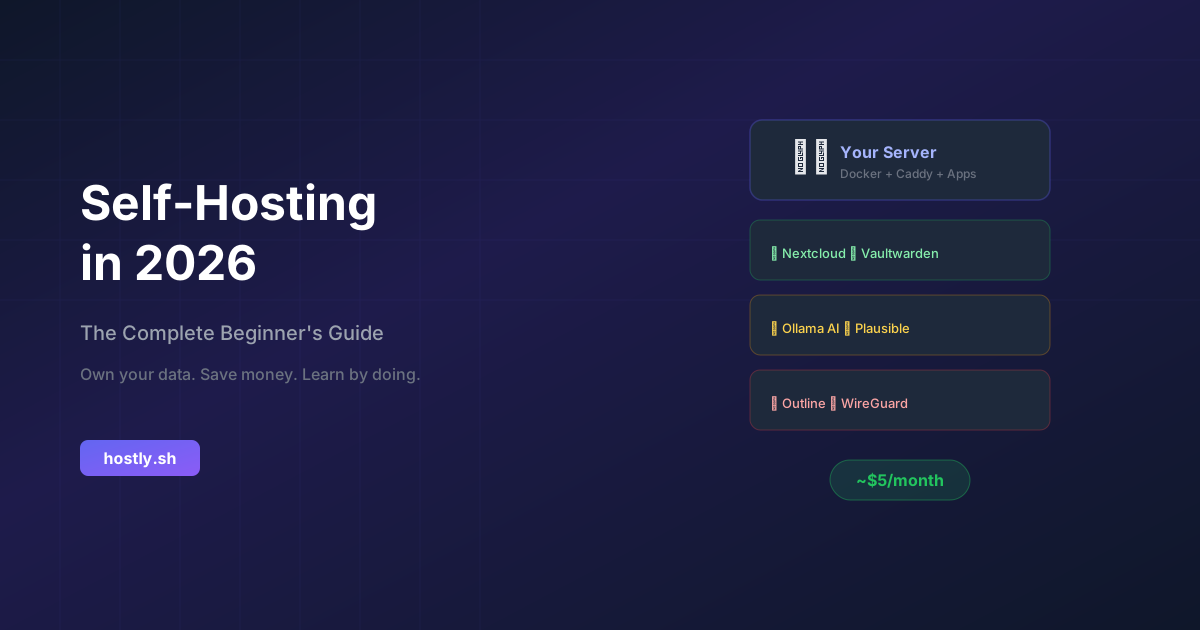
L'auto-hébergement est passé d'un hobby de niche à une pratique courante. En 2026, les outils sont matures, le matériel est abordable, et les raisons de prendre le contrôle de votre vie numérique n'ont jamais été aussi fortes. Que vous souhaitiez échapper à l'augmentation des coûts des SaaS, protéger votre vie privée, ou simplement apprendre comment fonctionnent les serveurs — ce guide vous aidera à démarrer.
Qu'est-ce que l'auto-hébergement ?
L'auto-hébergement signifie exécuter des applications sur du matériel que vous contrôlez — au lieu de dépendre des serveurs de quelqu'un d'autre (alias "le cloud"). Au lieu de payer Dropbox 12 $/mois, vous exécutez Nextcloud sur un VPS à 5 $/mois. Au lieu de faire confiance à Google pour vos e-mails, vous exécutez Stalwart Mail sur votre propre domaine.
Les avantages sont convaincants :
- Propriété totale des données — Vos fichiers, e-mails et notes résident sur votre matériel
- Confidentialité par défaut — Pas de scan, de suivi ou de vente de vos données par des tiers
- Économies — Un seul serveur à 5-30 $/mois peut remplacer des dizaines d'abonnements SaaS
- Pas de verrouillage fournisseur — Changez, migrez ou personnalisez librement
- Opportunité d'apprentissage — Comprenez comment fonctionne réellement Internet
Choisir votre matériel
Vous avez trois options principales pour exécuter des applications auto-hébergées. Chacune a son point fort.
Option 1 : Un VPS (Serveur Privé Virtuel)
Idéal pour : Débutants, accès à distance, services toujours actifs
Coût : 4–30 $/mois
Fournisseurs recommandés : Hetzner, Contabo, OVHcloud, Netcup
Un VPS est une machine virtuelle fonctionnant dans un centre de données. Vous obtenez un accès root, une adresse IP publique et un temps de disponibilité fiable. C'est la manière la plus simple de commencer car vous n'avez pas à vous soucier des pannes matérielles, des coupures de courant ou du DNS dynamique.
💡 VPS de démarrage recommandé
Hetzner CX22 — 2 vCPU, 4 Go de RAM, 40 Go SSD — 3,99 €/mois
Suffisant pour exécuter Nextcloud, un gestionnaire de mots de passe et quelques autres applications légères. Les centres de données européens d'Hetzner aident également à la conformité au RGPD.
Option 2 : Un Mini PC à domicile
Idéal pour : Serveurs multimédias, automatisation domestique, NAS
Coût : 150–500 $一次
Matériel recommandé : Mini PC Intel N100, Beelink, MinisForum
Pour les services nécessitant beaucoup de stockage (bibliothèques multimédias, sauvegardes) ou que vous souhaitez sur votre réseau local (automatisation domestique), un petit serveur domestique a du sens. Les mini PC basés sur Intel N100 consomment seulement 6-15W de puissance — à peu près la même chose qu'une ampoule — et peuvent exécuter des dizaines de conteneurs Docker.
Option 3 : Matériel ancien réutilisé
Idéal pour : Apprentissage, expérimentation, coût nul
Coût : Gratuit (si vous avez du matériel ancien)
Exemples : Ancien ordinateur portable, Raspberry Pi, ordinateur de bureau à la retraite
Vous avez un ancien ordinateur portable qui prend la poussière ? C'est un serveur tout à fait capable. Installez Ubuntu Server, branchez-le à votre routeur, et vous êtes en affaires. Le seul inconvénient est la consommation d'énergie et le bruit par rapport au matériel conçu à cet effet.
Stack logicielle essentielle
Voici la fondation logicielle que chaque auto-hébergeur devrait mettre en place en premier :
1. Système d'exploitation : Ubuntu Server ou Debian
Les deux sont solides, bien documentés et bénéficient d'un immense soutien communautaire. Ubuntu 24.04 LTS est le choix par défaut pour la plupart des débutants.
# After installing Ubuntu Server, update everything
sudo apt update && sudo apt upgrade -y

# Install essential tools
sudo apt install -y curl wget git ufw fail2ban
2. Docker : Votre moteur de déploiement d'applications
Docker vous permet d'installer des applications complexes avec une seule commande. Au lieu de configurer manuellement des bases de données, des serveurs web et des dépendances, vous exécutez simplement un conteneur.
# Install Docker
curl -fsSL https://get.docker.com | sh

# Add your user to the docker group
sudo usermod -aG docker $USER

# Install Docker Compose (included with modern Docker)
docker compose version
3. Proxy inverse : Caddy ou Nginx Proxy Manager
Un proxy inverse redirige le trafic de votre domaine vers le bon conteneur. Caddy est l'option la plus simple — il gère automatiquement les certificats HTTPS.
# Example Caddyfile
cloud.yourdomain.com {
    reverse_proxy localhost:8080
}

pass.yourdomain.com {
    reverse_proxy localhost:8081
}

git.yourdomain.com {
    reverse_proxy localhost:3000
}
Chaque service obtient son propre sous-domaine, HTTPS automatique et URLs propres. Plus besoin de se souvenir des numéros de port.
4. Pare-feu et bases de la sécurité
# Enable UFW firewall
sudo ufw default deny incoming
sudo ufw default allow outgoing
sudo ufw allow ssh
sudo ufw allow 80/tcp
sudo ufw allow 443/tcp
sudo ufw enable

# Enable fail2ban for SSH brute-force protection
sudo systemctl enable fail2ban
sudo systemctl start fail2ban
Vos 5 premières applications auto-hébergées
Commencez par ces remplacements à fort impact que vous utiliserez chaque jour :
📁 1. Nextcloud — Remplacez Google Drive / Dropbox
Synchronisation de fichiers, calendrier, contacts, notes, et plus encore. C'est le couteau suisse de l'auto-hébergement.
docker run -d --name nextcloud -p 8080:80 -v nextcloud:/var/www/html nextcloud🔑 2. Vaultwarden — Remplacez LastPass / 1Password
Un gestionnaire de mots de passe léger, auto-hébergé et compatible avec Bitwarden. Utilise les applications Bitwarden officielles.
docker run -d --name vaultwarden -p 8081:80 -v vw-data:/data vaultwarden/server📊 3. Plausible — Remplacez Google Analytics
Analyse web respectueuse de la vie privée. Script léger, pas de cookies, conforme au RGPD par conception.
📝 4. Outline — Remplacez Notion / Confluence
Wiki d'équipe et documentation magnifiques. Prend en charge Markdown, collaboration en temps réel et accès API.
🤖 5. Open WebUI + Ollama — Remplacez ChatGPT
Exécutez des modèles d'IA localement gratuitement. Consultez notre guide DeepSeek R1 vs ChatGPT pour la comparaison complète.
# Install Ollama
curl -fsSL https://ollama.com/install.sh | sh
ollama pull deepseek-r1:14b

# Install Open WebUI
docker run -d --name open-webui -p 3000:8080 \
  --add-host=host.docker.internal:host-gateway \
  -e OLLAMA_BASE_URL=http://host.docker.internal:11434 \
  ghcr.io/open-webui/open-webui:main
Détail des coûts : SaaS vs Auto-hébergé
Voici ce qu'un auto-hébergeur typique économise par an :
| Service | Coût SaaS (Annuel) | Coût auto-hébergé | Économies |
|---|---|---|---|
| Stockage Cloud (2 To) | 120 $ (Google One) | 0 $ (Nextcloud) | 120 $ |
| Gestionnaire de mots de passe | 36 $ (Bitwarden Premium) | 0 $ (Vaultwarden) | 36 $ |
| Analyse | 108 $ (Plausible Cloud) | 0 $ (Plausible auto-hébergé) | 108 $ |
| Wiki d'équipe | 96 $ (Notion par utilisateur) | 0 $ (Outline) | 96 $ |
| Assistant IA | 240 $ (ChatGPT Plus) | 0 $ (Ollama) | 240 $ |
| 72 $ (Google Workspace) | 0 $ (Stalwart) | 72 $ | |
| VPN | 48 $ (NordVPN) | 0 $ (WireGuard) | 48 $ |
| Coût total SaaS | 720 $/an | ||
| Coût VPS (Hetzner CX22) | 48 $/an | ||
| Économies annuelles | 672 $/an | ||
Cela représente des économies de 93 % — et vous obtenez en plus une propriété totale des données.
Meilleures pratiques de sécurité
L'auto-hébergement signifie que vous êtes responsable de la sécurité. Suivez ces éléments essentiels :
- Gardez tout à jour — Configurez des mises à jour non surveillées pour les correctifs du système d'exploitation
- Utilisez des clés SSH, pas des mots de passe — Désactivez l'authentification par mot de passe dans sshd_config
- Activez un pare-feu — N'ouvrez que les ports dont vous avez réellement besoin (80, 443, SSH)
- Utilisez fail2ban — Bannissez automatiquement les IP avec trop de tentatives de connexion échouées
- HTTPS partout — Caddy gère cela automatiquement avec Let's Encrypt
- Sauvegardes régulières — Utilisez restic ou borgbackup vers un emplacement hors site
- Surveillez vos services — Uptime Kuma est un excellent moniteur de disponibilité auto-hébergé
Pièges courants à éviter
- Ne pas trop complexifier — Commencez avec 2-3 applications. Ajoutez-en d'autres au fur et à mesure que vous vous sentez à l'aise.
- Ne pas sauter les sauvegardes — Votre serveur finira par échouer. Les sauvegardes sont non négociables.
- Ne pas exposer les services sans authentification — Utilisez l'authentification par proxy inverse ou VPN pour les applications sensibles.
- Ne pas ignorer les mises à jour — Les logiciels non corrigés sont le risque de sécurité numéro un.
- Ne pas tout faire tourner sur un seul serveur — Au fur et à mesure de votre croissance, séparez les services critiques.
Prochaines étapes
Vous avez la fondation. Voici où aller à partir de là :
- Parcourez notre annuaire d'applications sur hostly.sh pour découvrir d'autres applications auto-hébergeables
- Rejoignez la communauté — Le subreddit r/selfhosted est la plus grande communauté d'auto-hébergement avec plus de 400K membres
- Mettez en place une surveillance — Déployez Uptime Kuma pour surveiller vos services
- Automatisez les sauvegardes — Planifiez des sauvegardes quotidiennes avec restic vers Backblaze B2 (0,005 $/Go)
- Explorez l'auto-hébergement d'IA — Consultez notre comparaison DeepSeek R1 vs ChatGPT
L'auto-hébergement en 2026 est plus facile que jamais. Les outils sont raffinés, la communauté est énorme, et les économies sont réelles. Commencez petit, apprenez en cours de route, et profitez de la liberté de posséder votre vie numérique.
Prêt à plonger ? Parcourez notre annuaire sélectionné d'applications auto-hébergeables sur hostly.sh — nous catégorisons, comparons et examinons les meilleurs logiciels open-source pour chaque cas d'utilisation.