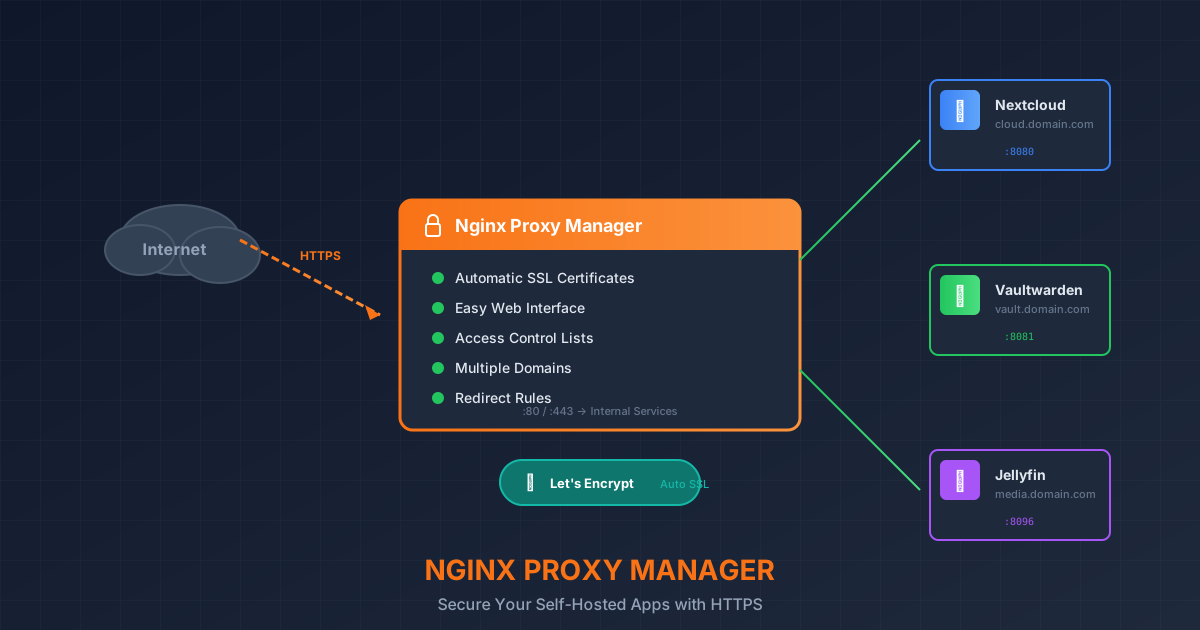
You've deployed Nextcloud on port 8080, Jellyfin on 8096, Vaultwarden on 8081, and a dozen other services. Now you're juggling bookmarks like http://192.168.1.50:8080, struggling to remember which port goes where, and your browser screams security warnings because nothing has HTTPS.
There's a better way. Nginx Proxy Manager (NPM) is a beautiful, user-friendly reverse proxy that sits in front of all your services and handles the complexity for you. With a few clicks, you get automatic SSL certificates from Let's Encrypt, clean subdomain URLs like cloud.yourdomain.com, and a gorgeous dashboard to manage it all.
In this comprehensive guide, we'll set up Nginx Proxy Manager from scratch, configure SSL certificates, and secure multiple services. By the end, you'll have a professional-grade reverse proxy running in minutes — no nginx.conf editing required.
What Is a Reverse Proxy?
A reverse proxy is a server that sits between the internet and your applications. When someone visits cloud.yourdomain.com, the request hits your reverse proxy first. The proxy looks at the domain name, finds the matching rule, and forwards the request to the correct internal service (like Nextcloud on port 8080).
Benefits of using a reverse proxy:
- Single Entry Point — Only ports 80 and 443 exposed to the internet
- Automatic HTTPS — SSL certificates for all services with zero effort
- Clean URLs — Use subdomains instead of port numbers
- Access Control — IP whitelisting, basic auth, and more
- Centralized Security — One place to manage headers and security policies
Why Nginx Proxy Manager?
Traditional nginx configuration requires editing text files with precise syntax. One misplaced semicolon and your entire proxy breaks. Nginx Proxy Manager wraps nginx in a beautiful web interface:
| Feature | Raw Nginx | Nginx Proxy Manager |
|---|---|---|
| Configuration | Text files | Web GUI |
| SSL Certificates | Manual certbot setup | One-click Let's Encrypt |
| Learning Curve | Steep | Minimal |
| Error Handling | Cryptic logs | Visual feedback |
| Access Control | Manual ACL config | Built-in access lists |
| Monitoring | External tools | Built-in request logs |
Prerequisites
Before we start, you'll need:
- A server or VPS — With Docker installed (1GB RAM minimum)
- A domain name — Pointed to your server's IP address
- Ports 80 and 443 available — Not used by other services
- Some services to proxy — Like Nextcloud, Jellyfin, Vaultwarden, etc.
💡 DNS Setup
Before continuing, make sure your domain's DNS is configured:
- Create an A record for your main domain pointing to your server IP
- Create a wildcard A record (
*.yourdomain.com) pointing to the same IP - Or create individual A records for each subdomain you'll use
Step 1: Create the Project Directory
Create a dedicated directory for Nginx Proxy Manager:
mkdir -p ~/nginx-proxy-manager
cd ~/nginx-proxy-manager
Step 2: Create Docker Compose File
Create the docker-compose.yml file:
nano docker-compose.ymlPaste this configuration:
services:
  npm:
    image: 'jc21/nginx-proxy-manager:latest'
    container_name: nginx-proxy-manager
    restart: unless-stopped
    ports:
      - '80:80'      # HTTP
      - '443:443'    # HTTPS
      - '81:81'      # Admin Panel
    volumes:
      - ./data:/data
      - ./letsencrypt:/etc/letsencrypt
    networks:
      - proxy

networks:
  proxy:
    name: proxy
    driver: bridge
Let's break down this configuration:
- Port 80 — HTTP traffic (will redirect to HTTPS)
- Port 443 — HTTPS traffic (SSL-secured)
- Port 81 — Admin panel (we'll secure this later)
- ./data — Stores database and configuration
- ./letsencrypt — Stores SSL certificates
- proxy network — Shared network for other containers
Step 3: Launch Nginx Proxy Manager
Start the container:
docker compose up -dWait about 30 seconds for it to initialize, then check the logs:
docker compose logs -fYou should see messages indicating the database is ready and the server is listening.
Step 4: Access the Admin Panel
Open your browser and navigate to:
http://YOUR_SERVER_IP:81Log in with the default credentials:
- Email:
[email protected] - Password:
changeme
You'll be immediately prompted to change these. Choose a strong password — this panel controls access to all your services!
Step 5: Add Your First Proxy Host
Now let's proxy your first service. We'll use Nextcloud as an example, but the process is the same for any service.
5.1 Connect Your Service to the Proxy Network
First, add your service to the proxy network. Edit your service's docker-compose.yml:
# Example: Nextcloud docker-compose.yml
services:
  nextcloud:
    image: nextcloud:stable
    container_name: nextcloud
    # ... other config ...
    networks:
      - proxy
      - default

networks:
  proxy:
    external: true
Restart your service:
docker compose up -d5.2 Create the Proxy Host
- In NPM admin panel, go to Hosts → Proxy Hosts
- Click Add Proxy Host
- Fill in the Details tab:
- Domain Names:
cloud.yourdomain.com - Scheme:
http(unless your service uses internal HTTPS) - Forward Hostname / IP:
nextcloud(container name) - Forward Port:
80(or your service's internal port) - Enable Block Common Exploits
- Enable Websockets Support (if your app uses them)
- Domain Names:
5.3 Configure SSL Certificate
- Click the SSL tab
- Select Request a new SSL Certificate
- Enable Force SSL
- Enable HTTP/2 Support
- Enter your email for Let's Encrypt
- Agree to the Terms of Service
- Click Save
NPM will automatically request an SSL certificate from Let's Encrypt. Within seconds, your service will be available at https://cloud.yourdomain.com with a valid SSL certificate!
Step 6: Configure Additional Services
Repeat the process for each service. Here are some common configurations:
Vaultwarden
- Domain:
vault.yourdomain.com - Forward Hostname:
vaultwarden - Forward Port:
80 - Websockets: Enabled (required for live sync)
Jellyfin
- Domain:
media.yourdomain.com - Forward Hostname:
jellyfin - Forward Port:
8096 - Websockets: Enabled
Home Assistant
- Domain:
home.yourdomain.com - Forward Hostname:
homeassistant - Forward Port:
8123 - Websockets: Enabled (required)
Uptime Kuma
- Domain:
status.yourdomain.com - Forward Hostname:
uptime-kuma - Forward Port:
3001 - Websockets: Enabled
Step 7: Secure the Admin Panel
The admin panel on port 81 is currently accessible from anywhere. Let's secure it properly.
Option A: Proxy the Admin Panel Itself
Create a proxy host for the admin panel:
- Domain:
npm.yourdomain.com - Forward Hostname:
nginx-proxy-manager - Forward Port:
81 - Enable SSL
Then update your docker-compose to only expose port 81 internally:
ports:
  - '80:80'
  - '443:443'
  # Remove: - '81:81'
  - '127.0.0.1:81:81'  # Only localhost
Option B: Use Access Lists
- Go to Access Lists in NPM
- Create a new access list with your IP address
- Apply it to the npm.yourdomain.com proxy host
Step 8: Add Custom Security Headers
For additional security, add custom headers to your proxy hosts:
- Edit a proxy host
- Go to the Advanced tab
- Add custom Nginx configuration:
add_header X-Frame-Options "SAMEORIGIN" always;
add_header X-Content-Type-Options "nosniff" always;
add_header X-XSS-Protection "1; mode=block" always;
add_header Referrer-Policy "strict-origin-when-cross-origin" always;
add_header Strict-Transport-Security "max-age=31536000; includeSubDomains" always;
Wildcard SSL Certificates
Instead of getting a certificate for each subdomain, you can get a single wildcard certificate for *.yourdomain.com.
Requirements
- DNS provider that supports API access (Cloudflare, DigitalOcean, etc.)
- API credentials for your DNS provider
Setup with Cloudflare
- Go to SSL Certificates in NPM
- Click Add SSL Certificate
- Choose Let's Encrypt
- Enter
*.yourdomain.comandyourdomain.com - Enable Use a DNS Challenge
- Select Cloudflare as DNS Provider
- Enter your Cloudflare API Token
- Click Save
Now you can use this wildcard certificate for any subdomain!
Redirects and Streams
Redirects
Create redirects for common scenarios:
- Redirect
www.yourdomain.comtoyourdomain.com - Redirect old URLs to new services
- Redirect HTTP to HTTPS (automatic with Force SSL)
Go to Hosts → Redirection Hosts and configure as needed.
Streams (TCP/UDP Proxying)
For non-HTTP services like databases or game servers:
- Go to Hosts → Streams
- Add a stream with incoming and forwarding ports
- NPM will proxy raw TCP/UDP traffic
Troubleshooting
"Bad Gateway" Error
- Check if the target service is running:
docker ps - Verify the container is on the proxy network:
docker network inspect proxy - Confirm the port number is correct
- Check if the scheme (http/https) matches your service
SSL Certificate Fails
- Verify DNS is pointing to your server:
nslookup subdomain.yourdomain.com - Check ports 80 and 443 are open on your firewall
- Look at NPM logs:
docker compose logs npm - Wait 5 minutes and try again (rate limiting)
WebSocket Connection Fails
- Enable "Websockets Support" on the proxy host
- Check your service's documentation for WebSocket requirements
- Some services need specific headers in the Advanced tab
Slow Performance
- Enable HTTP/2 on the SSL tab
- Check if "Block Common Exploits" is causing issues (disable to test)
- Monitor NPM resource usage:
docker stats nginx-proxy-manager
Backup and Restore
Your configuration is stored in the ./data directory. Backup regularly:
#!/bin/bash
# backup-npm.sh
DATE=$(date +%Y-%m-%d)
tar -czf "npm-backup-$DATE.tar.gz" data letsencrypt
To restore, simply extract the backup and restart the container.
Alternatives to Consider
While NPM is excellent for beginners, here are alternatives for specific needs:
| Tool | Best For | Configuration |
|---|---|---|
| Nginx Proxy Manager | Beginners, GUI lovers | Web interface |
| Traefik | Dynamic Docker environments | Labels on containers |
| Caddy | Simple config, automatic HTTPS | Caddyfile (text) |
| HAProxy | High performance, load balancing | Config file |
Security Best Practices
- Keep NPM Updated —
docker compose pull && docker compose up -d - Use Strong Admin Password — Change from default immediately
- Limit Admin Access — Use access lists or firewall rules
- Enable HSTS — Force browsers to always use HTTPS
- Regular Backups — Automate backups of the data directory
- Monitor Logs — Check for suspicious access patterns
- Use Fail2Ban — Block repeated failed access attempts
Frequently Asked Questions
Can I use NPM without a domain?
Yes, for local network use. You won't get Let's Encrypt certificates, but you can use self-signed certificates or HTTP only.
Does NPM work with non-Docker services?
Absolutely. Use the IP address of the machine running the service instead of a container name. Just ensure network connectivity.
How many services can NPM handle?
Hundreds. NPM is a thin wrapper around nginx, which is extremely efficient. The limiting factor is usually your server's bandwidth, not NPM.
Can I migrate from Traefik or Caddy?
Yes. Create new proxy hosts in NPM pointing to the same services, then update DNS or ports to cut over.
Is NPM suitable for production?
Yes. Many businesses run NPM in production. For high-availability setups, consider running multiple instances behind a load balancer.
What's Next?
With Nginx Proxy Manager running, you can:
- Deploy more services — Each gets its own subdomain with automatic SSL
- Set up authentication — Use access lists or integrate with Authelia for SSO
- Monitor with Uptime Kuma — Track all your services from one dashboard
- Add a dashboard — Use Homepage or Homarr as a landing page
You've taken a huge step in professionalizing your self-hosted infrastructure. No more remembering ports. No more browser security warnings. Just clean, secure URLs for all your services.
Welcome to the right way to run self-hosted apps.