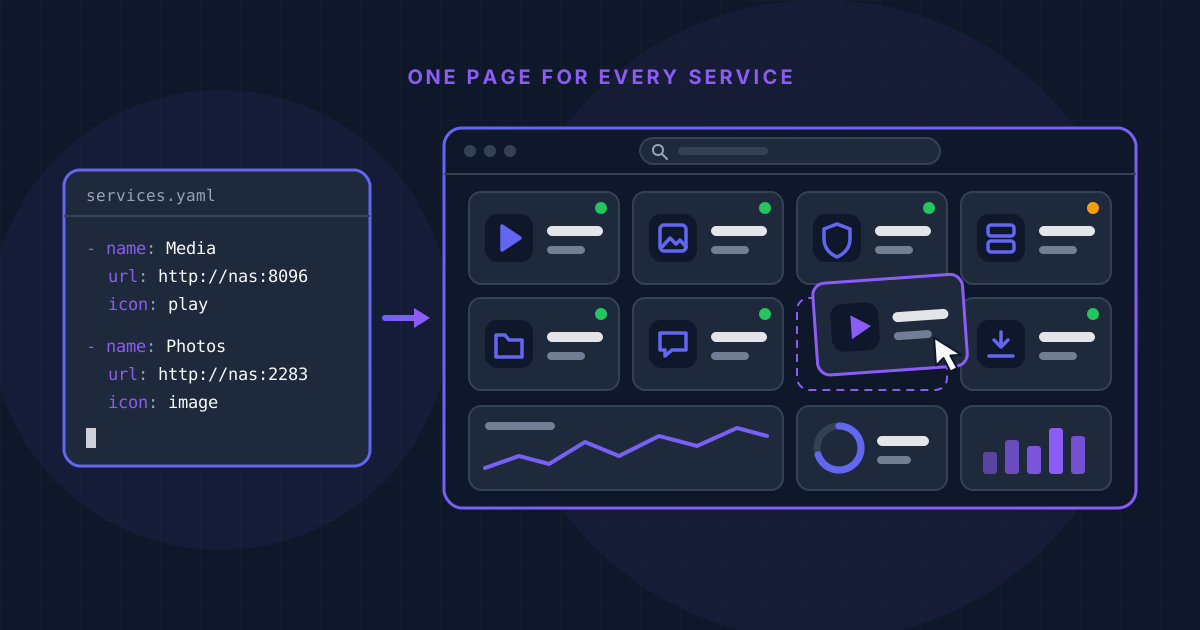
Finding the best homelab dashboard sounds like a cosmetic decision until your home server is running fifteen services on fifteen ports and nobody in the house can remember which is which. A dashboard gives all of them one address: a start page with a tile per service, a status indicator and, often, live numbers pulled from each app's API.
The Hostly directory lists 21 projects under Personal Dashboards. This guide compares the six most-starred of them: Homepage, Dashy, Glance, Homarr, Heimdall and Homer. Everything below was checked on November 19, 2026 against each project's repository and documentation, using the current releases: Homepage v2.8.0, Dashy 4.9.0, Glance v0.8.8, Homarr v2.13.1, Heimdall v2.8.4 and Homer v26.11.3. Figures quoted are the projects' own; we ran no benchmarks.
The Short Answer
Quick Picks
- ✅Homepage if you are comfortable with YAML and want the widest set of service widgets, with tiles generated from Docker labels
- ✅Homarr if you never want to open a config file: drag and drop, user accounts and permissions out of the box
- ✅Dashy if you want both a YAML file and an editor in the browser
- ✅Glance if you want a page you read rather than a launcher: feeds, releases, weather and markets next to your service status
- ✅Homer if you want a static page with nothing to maintain
- ✅Heimdall if you want a simple tile launcher that anyone can edit through a form
What a Homelab Dashboard Does (and What It Doesn't)
All six do the same basic job: they show links to your services, grouped and searchable, on one page. Most add a status check, which tells you whether a service answers, and integrations (called widgets, smart cards or enhanced apps depending on the project), which query an app's API and show live data such as a download queue.
A home server dashboard is not a monitoring system: it shows the state of things when you look at it and will not alert you when a service goes down. For that, pair it with a dedicated monitor such as Uptime Kuma, which Homepage and Homer can both display. Remember too that a dashboard with integrations holds API keys for everything it talks to.
The Six Dashboards at a Glance
| Feature | Homepage | Dashy | Glance | Homarr | Heimdall | Homer |
|---|---|---|---|---|---|---|
| Licence | GPL-3.0 | MIT | AGPL-3.0 | Apache-2.0 | MIT | Apache-2.0 |
| Configured with | YAML files or Docker labels | One YAML file or the built-in UI editor | YAML files | Web UI (drag and drop) | Web UI (forms) | One YAML file |
| Integrations | Over 100 service widgets | Close to 100 documented widgets | Feed, status and custom API widgets | 80+ integrations | 155 enhanced apps with live stats | Smart cards for 50+ services |
| Built-in login | Optional password or OIDC (since v2.0) | User list in the config; OIDC and Keycloak SSO | Username and password | Users, groups, OIDC and LDAP | htpasswd in the LinuxServer.io image | None; meant to sit behind a proxy |
| Latest release | v2.8.0 | 4.9.0 | v0.8.8 | v2.13.1 | v2.8.4 | v26.11.3 |
| GitHub stars (Nov 19, 2026) | About 33,700 | About 27,000 | About 38,300 | About 5,400 | About 9,400 | About 11,700 |
YAML or UI: The Choice That Decides Everything Else
The feature lists of these projects overlap heavily. What really differs, every time you add a service, is where the configuration lives.
Files first: Homepage, Glance and Homer. Your dashboard is a few YAML files in a folder that can sit in Git next to your Compose files and be restored on a new machine by copying it. The price is that every change means editing text, and YAML is strict about indentation. Homepage's README notes that most of the questions it receives are answered in the docs or are simple YAML configuration issues.
UI first: Homarr and Heimdall. You add apps by filling in forms, and in Homarr you drag tiles around a grid. Anyone in the household can make changes. The configuration lives in the application's data directory (/appdata for Homarr, /config for the Heimdall image), so that directory is what you back up.
Both: Dashy. Dashy reads a single conf.yml and also has an editor in the interface that saves your changes back to that file.
If you already use Docker Compose, you already write YAML and the file-based tools will feel natural. If Compose is new to you, start with our Docker Compose basics guide.
Homepage: The Widest Set of Integrations
Homepage describes itself as a fast, fully proxied, highly customisable application dashboard with integrations for over 100 services. Its documentation currently has pages for more than 160 service widgets, plus information widgets for weather, date and time, search and system resources. It is a Next.js application under the GPL-3.0 licence, with images for AMD64 and ARM64 and translations into more than 40 languages.
"Fully proxied" matters for security: Homepage's server makes the API requests, so the keys in your configuration stay hidden from whoever opens the page.
Configuration is split across a few files in one directory: services.yaml, bookmarks.yaml, widgets.yaml, settings.yaml and docker.yaml. You can skip part of the editing, too: once a Docker instance is configured, Homepage discovers containers that carry homepage.* labels and builds their tiles automatically.
This is the Compose file from the project's README:
services:
  homepage:
    image: ghcr.io/gethomepage/homepage:latest
    container_name: homepage
    environment:
      HOMEPAGE_ALLOWED_HOSTS: gethomepage.dev # required, may need port. See gethomepage.dev/installation/#homepage_allowed_hosts
      PUID: 1000 # optional, your user id
      PGID: 1000 # optional, your group id
    ports:
      - 3000:3000
    volumes:
      - /path/to/config:/app/config # Make sure your local config directory exists
      - /var/run/docker.sock:/var/run/docker.sock:ro # optional, for docker integrations
    restart: unless-stopped
Two lines deserve attention. HOMEPAGE_ALLOWED_HOSTS has been required since v1.0 for any address other than localhost: replace the example value with the host you type in the browser, port included (for example 192.168.1.10:3000), or you will see a host validation error. The Docker socket line is optional, and the documentation says plainly that using the socket directly is not the recommended method of integration.
Since v2.0 Homepage also has an optional login, with a password or an OIDC provider. The project calls it a simple gate, warns that it does not rate-limit password attempts, and still recommends a reverse proxy or VPN.
Dashy: YAML and a UI Editor in One
Dashy (MIT licence, built with Vue) is the most configurable of the six. One file, conf.yml, defines pages, sections and items, and the same settings can be changed in the browser: right-click a tile, choose Edit, preview the change live and save it to disk.
What Dashy Includes
- ✅Status indicators per item: an HTTP check, an ICMP ping, or both (off by default)
- ✅Close to 100 documented widgets for general information, self-hosted services and system resources
- ✅Built-in themes with a colour editor in the UI, custom CSS and several icon packs
- ✅A workspace view for switching between apps and a minimal view for use as a browser start page
The documented requirements are modest: the image runs on amd64 and arm64 (not 32-bit ARM), the Node server idles at roughly 80 to 120 MB of memory, and 256 MB of RAM is described as more than enough.
services:
  dashy:
    image: lissy93/dashy:latest
    container_name: dashy
    ports:
      - 8080:8080
    volumes:
      - ./user-data:/app/user-data
    environment:
      - NODE_ENV=production
    restart: unless-stopped
This is the Compose example from Dashy's Docker documentation without its comments and optional health check override. The mounted user-data directory must contain a conf.yml.
Read the authentication docs before relying on the login. Dashy can show a login page from a list of users in conf.yml, but its documentation warns that in the default client-side mode this is a UI overlay that can be bypassed by fetching the config file directly. Setting ENABLE_HTTP_AUTH=true enforces it on the server, and single sign-on through Keycloak or any OIDC provider is supported. The docs sum up the built-in option as a soft barrier for trusted networks.
Glance: A Dashboard You Read
Glance is the most-starred project in this comparison and the odd one out. The others start from a grid of app tiles; Glance starts from content. Its README calls it a lightweight, highly customisable dashboard that displays your feeds in a streamlined interface: RSS, subreddit posts, Hacker News, YouTube uploads, weather, market prices and new releases of the projects you follow, in columns across as many pages as you need. A smaller set of widgets covers the homelab side:
Glance's Homelab Widgets
- ✅Monitor: a list of sites showing whether each one is reachable, with its response time
- ✅Docker containers: container status, with names, icons and links set through
glance.*labels (needs the Docker socket) - ✅DNS stats: figures from AdGuard Home, Pi-hole or Technitium
- ✅Server stats: CPU, memory and disk usage; the docs mark this widget as still under development
- ✅Bookmarks, search, and custom API, iframe and HTML widgets for anything else
Glance is written in Go and ships as a single binary of under 20 MB for Linux, Windows and macOS, or as an equally small Docker image. Configuration is YAML only and reloads automatically when you save the file. Username and password authentication is built in, and Glance blocks an IP address after five failed attempts within five minutes.
services:
  glance:
    container_name: glance
    image: glanceapp/glance
    restart: unless-stopped
    volumes:
      - ./config:/app/config
    ports:
      - 8080:8080
Before the first start, download the starter config, as the README instructs:
mkdir config && wget -O config/glance.yml https://raw.githubusercontent.com/glanceapp/glance/refs/heads/main/docs/glance.ymlTwo behaviours are worth knowing. Glance makes no background requests: data is fetched when you load the page and then cached, so nothing updates until you refresh. And the README warns that a page with many widgets can exceed the default rate limits of DNS blockers such as Pi-hole and AdGuard Home, which makes requests time out. The fix is to raise the limit in the blocker's settings.
Homarr: No YAML at All
Homarr (Apache-2.0) takes the opposite approach to Homepage. The project's own description promises no YAML and drag-and-drop configuration: you build boards in the browser. It is also the most complete of the six as a multi-user application.
What Homarr Includes
- ✅A drag-and-drop grid, with boards that can be public or private
- ✅User management with permissions and groups, and single sign-on via OIDC or LDAP
- ✅More than 80 integrations with self-hosted applications, and widgets that update in real time over WebSockets
- ✅An onboarding wizard that creates the administrator account and, if the Docker socket is mounted, detects running containers and matches them to known integrations
It asks for more than the others in return. The documented minimum is 500 MB of RAM and 600 MB of disk space for the image, on amd64 or arm64 (32-bit ARM is not supported). The one mandatory setting is an encryption key, a 64-character hex string that you can generate with openssl rand -hex 32:
services:
  homarr:
    container_name: homarr
    image: ghcr.io/homarr-labs/homarr:latest
    restart: unless-stopped
    volumes:
      - /var/run/docker.sock:/var/run/docker.sock # Optional, only if you want docker integration
      - ./homarr/appdata:/appdata
    environment:
      - SECRET_ENCRYPTION_KEY=your_64_character_hex_string
    ports:
      - '7575:7575'
Open port 7575 and the onboarding starts. If it reappears after every restart, the documentation's diagnosis is a missing, incorrect or read-only appdata mount.
Heimdall: The Simple Launcher
Heimdall is an MIT-licensed application dashboard and launcher built on Laravel and developed under the LinuxServer.io organisation on GitHub. It is the least ambitious of the six, which is its appeal. You add a tile through a form: start typing an application's name and Heimdall offers it from its catalogue.
That catalogue distinguishes two kinds of apps. Foundation apps get their icon and tile colour filled in. Enhanced apps also accept API details and show live stats on the tile; the README's example is NZBGet and SABnzbd displaying queue size and download speed. On the day we checked, the project's app index listed 676 applications, 155 of them enhanced.
The usual way to run it is the LinuxServer.io image, lscr.io/linuxserver/heimdall, published for x86-64 and arm64; its README has the Compose file. The container listens on ports 80 and 443, which clash with a reverse proxy on the same machine if you publish them unchanged. The image supports password protection through an htpasswd file. By default Heimdall blocks lookup requests to private IP addresses as a protection against server-side request forgery; on an instance that is not exposed to the internet, ALLOW_INTERNAL_REQUESTS=true lifts that restriction.
Homer: A Static Page and Nothing Else
Homer (Apache-2.0) calls itself a dead simple static homepage for your server. That is literal: it is a set of HTML and JavaScript files plus one config.yml, with no server-side application behind them. You can run the official b4bz/homer container, which serves it on port 8080, or download homer.zip from the releases page and put it behind a web server you already have.
For a static page it does a lot: service groups and multiple pages, fuzzy search, themes, installation as a PWA and a connectivity check that tells you when the dashboard itself is unreachable. Smart cards add live data for more than 50 services, including Proxmox, Portainer, Home Assistant and Nextcloud.
The static design has two consequences that the documentation spells out. Smart cards call your services from the browser, so they are subject to CORS restrictions: the services must be on the same domain as Homer, send the right headers, or sit behind a proxy that adds them. And config.yml is served over HTTP like any other file, so an API key written in it is visible to anyone who can reach the page. Keep keys out of it unless Homer is protected by authentication.
Securing Your Dashboard
A dashboard maps your whole setup and, once integrations are configured, stores credentials for it. Two habits apply whichever one you choose.
Keep it off the public internet unless something stronger stands in front. The projects say this themselves: Homepage's README states that an instance reachable from an untrusted network must sit behind a reverse proxy or VPN that enforces authentication, and Dashy's docs tell you never to expose an instance without sufficient authentication. Our Nginx Proxy Manager setup guide shows how to put a service behind HTTPS and restrict it with access lists.
Treat the Docker socket with care. Homepage, Glance and Homarr can all read container information through /var/run/docker.sock. Homepage's documentation points to the security concerns of exposing the socket directly and shows the alternative: a socket proxy container in between, configured to refuse every POST operation, which makes access effectively read-only.
Other Dashboards in the Hostly Directory
If none of the six fits, four smaller projects are worth a look: Fenrus, a personal home page with multiple users and guest access; Mafl, a minimalistic and flexible homepage; Starbase 80, an iPad-style application grid driven by one JSON file; and Hubleys, which serves dashboards to several users from a central YAML config.
Frequently Asked Questions
What is the best homelab dashboard for beginners?
Homarr, if you want to avoid config files: an onboarding wizard, drag and drop, and no YAML. Heimdall is simpler still if all you need is tiles. If you already use Docker Compose, Homepage is not much harder and offers more integrations.
Which dashboard is the lightest?
Going by what the projects publish: Homer is only static files, and Glance is a single binary of under 20 MB. Dashy documents roughly 80 to 120 MB of idle memory, and Homarr asks for at least 500 MB of RAM. We found no published memory figure for Homepage or Heimdall, and we have not measured any of them ourselves.
Can I run a dashboard on a Raspberry Pi?
Yes. Homepage, Dashy, Homarr and Heimdall publish arm64 images, Glance provides ARM and ARM64 binaries, and Homer can be served by any web server. Current Dashy and Homarr images need a 64-bit system.
Our Verdict
For most people running a home server with Docker Compose, Homepage is the best homelab dashboard to start with: the widest set of integrations, tiles generated from container labels, API keys kept on the server side and a configuration you can keep in Git. Homarr is the one to pick if YAML is a deal-breaker, or if several people need their own accounts and boards. Dashy sits between the two and rewards tinkering. Glance is the best choice when you want a morning page rather than a launcher. Homer and Heimdall remain the right answer when all you need is a tidy page of links.
All six are free and open source. Once the dashboard is up, the natural next step is filling it: our list of the 15 best self-hosted apps for a home server is a good place to find the next tile.