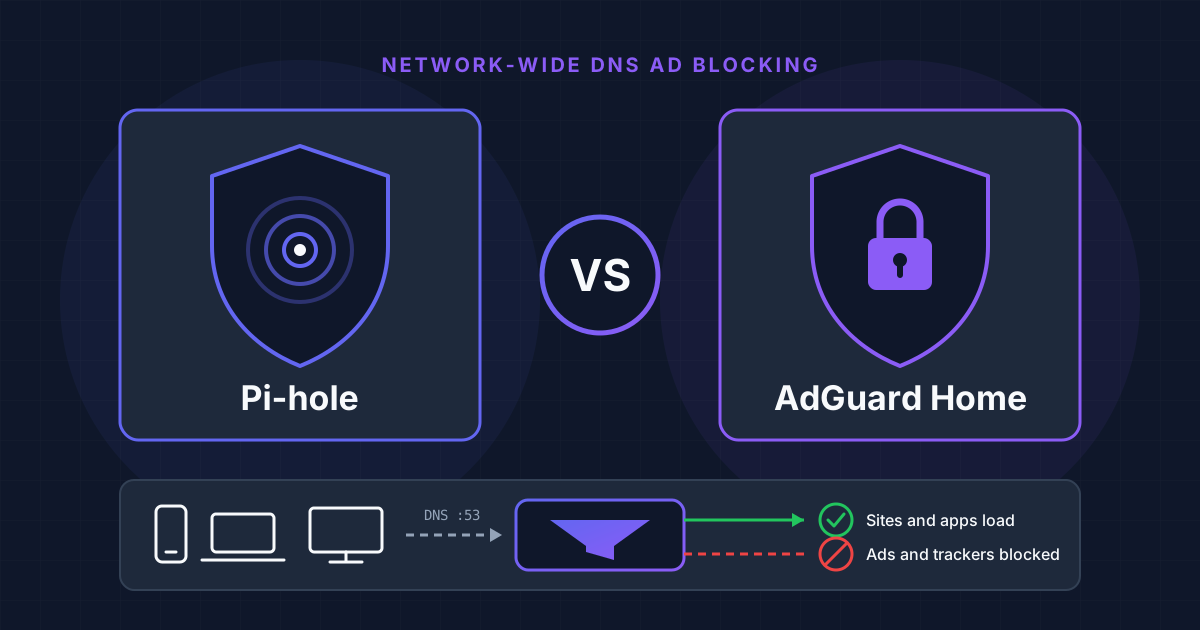
Pi-hole vs AdGuard Home is the first real decision most people face once a home server is running. Both are free, open-source DNS servers that block ads and trackers for every device on your network, including the smart TVs, consoles and phones where you cannot install a browser extension. Both run happily on a Raspberry Pi or in a container. They differ in what comes built in, how they are configured and how much they expect you to assemble yourself.
This comparison is based on the current releases at the time of writing (Pi-hole Core v6.6 with FTL v6.9, and AdGuard Home v0.107.80) and on each project's own documentation. One warning up front: many older comparisons describe Pi-hole v5. Pi-hole v6 changed several of the points those articles criticise, so we flag where that matters.
The Short Answer
Choose Pi-hole When:
- 🟢You want the larger community and the most tutorials, scripts and integrations
- 🟢You like assigning blocklists and rules to groups of devices
- 🟢You plan to run your own recursive resolver with Unbound, which Pi-hole documents step by step
- 🟢You are comfortable on Linux and do not mind adding a second tool for encrypted DNS
Choose AdGuard Home When:
- 🟢You want encrypted DNS (DoH, DoT, DoQ) without installing anything else
- 🟢You need parental controls, enforced safe search or one-click blocking of specific services
- 🟢You want your phone to use your blocker away from home through encrypted DNS
- 🟢You prefer a single binary with one YAML file and a setup wizard
How DNS Ad Blocking Works (and What It Cannot Do)
Both tools are DNS sinkholes. Your router hands out the blocker's IP address as the network's DNS server. When a device asks for the address of an ad or tracking domain, the blocker answers with a dead end instead of forwarding the question, so the request never leaves your network. Everything else is forwarded to an upstream resolver and cached.
The limitation is the same for both, and the AdGuard Home README states it plainly: advertising that is served from the same domain as the content cannot be blocked at DNS level. That covers YouTube and Twitch ads and sponsored posts on Facebook, X and Instagram. A DNS blocker complements a browser ad blocker; it does not replace one. If YouTube is your main target, our guide on blocking YouTube Shorts covers approaches that work at the app level.
Pi-hole vs AdGuard Home at a Glance
| Feature | Pi-hole v6 | AdGuard Home |
|---|---|---|
| Licence | EUPL | GPL-3.0 |
| Native install | Linux only (Debian, Ubuntu, Raspberry Pi OS, Fedora, CentOS Stream, Alpine, Armbian) | Single binary; install script for Linux, macOS, FreeBSD and OpenBSD |
| Official Docker image | Yes (pihole/pihole) | Yes (adguard/adguardhome) |
| Blocklists, allowlists, regex rules | Yes, including subscribed allowlists | Yes; Adblock-style, hosts and domains-only syntax |
| Encrypted upstream DNS | Needs extra software (Unbound, dnscrypt-proxy) | Built in: DoT, DoH, HTTP/3, DoQ, DNSCrypt |
| Serve encrypted DNS to clients | Not built in | Built in: DoH, DoT, DoQ, DNSCrypt |
| HTTPS for the admin UI | Built in since v6 | Built in |
| Parental control / safe search | Only through blocklists you add | Built-in toggles |
| Per-device rules | Groups of clients, lists and domains | Persistent clients with their own settings and upstreams |
| DHCP server | Yes (optional) | Yes (optional) |
| Local DNS records | Yes (custom host and CNAME records) | Yes (DNS rewrites: A, AAAA, CNAME) |
| Configuration | pihole.toml, CLI, API, web UI, environment variables | AdGuardHome.yaml, web UI, API |
| GitHub stars (Nov 2026) | About 62,000 | About 38,000 |
Pi-hole: The Community Standard
Pi-hole is the project that made network-wide ad blocking a household idea, and by GitHub stars it remains clearly the more popular of the two. Its documented requirements are modest: 512 MB of RAM and 2 GB of free disk space (4 GB recommended), on any hardware that runs a supported Linux distribution. The resolver at its heart, pihole-FTL, is pre-built for x86_64, ARM and RISC-V. The one firm network requirement is a static IP address, or a DHCP reservation, for the machine it runs on.
What Changed in v6
Pi-hole v6, released in February 2025, was a major rewrite, and it removed several long-standing complaints:
Pi-hole v6 Highlights
- ✅The web server and a new REST API are embedded in the
pihole-FTLbinary, so lighttpd and PHP are no longer needed - ✅Native HTTPS for the admin interface, with an auto-generated certificate or your own
- ✅All settings consolidated into one commented file,
/etc/pihole/pihole.toml - ✅Subscribed allowlists ("antigravity"), which work like blocklists in reverse
- ✅A redesigned interface with Basic and Expert settings modes
- ✅A Docker image rebuilt on Alpine, which made it much smaller
This matters when you read comparisons. The feature table in AdGuard Home's own README still says Pi-hole's HTTPS support requires manually configuring lighttpd. That was true of v5 and is not true of v6.
Where Pi-hole Is Strong
Group management. Any subscribed list, allowlist or denylist entry and regex rule can be assigned to one or more groups, and clients are assigned to groups too. That lets you build setups such as a strict set of lists for the children's devices, a relaxed one for a work laptop and the default for everything else, and switch a whole group on or off at once.
A documented path to recursive DNS. Pi-hole's docs include a full guide to running Unbound next to it, so that your server resolves names by asking the authoritative servers directly instead of handing your whole browsing history to one upstream provider.
Flexibility in configuration. Every setting can be changed in the TOML file, from the command line, through the API, in the web interface or with environment variables, which makes Pi-hole easy to manage declaratively in Docker.
Where It Falls Short
Pi-hole still forwards queries to its upstream in plain DNS. To encrypt that leg you add another piece of software. The official docs describe dnscrypt-proxy for DNS-over-HTTPS; the older cloudflared guide now carries a warning that Cloudflare deprecated the proxy-dns feature it relied on, and that new installations with that method are not recommended. Pi-hole also has no built-in way to act as an encrypted DNS server for your devices, and features such as parental filtering or safe search depend on finding and maintaining the right blocklists yourself. Native installation is Linux-only; on other systems you use Docker.
AdGuard Home: Batteries Included
AdGuard Home is developed by the company behind the AdGuard apps and AdGuard DNS, and shares code with that public DNS service. It is GPL-3.0 licensed and ships as a single binary with the web interface built in. The project's stated goal is that features work out of the box without installing and wiring up additional software.
What AdGuard Home Includes
- ✅Encrypted upstreams: DNS-over-TLS, DNS-over-HTTPS (including forced HTTP/3), DNS-over-QUIC and DNSCrypt
- ✅Can itself serve DoH, DoT, DoQ and DNSCrypt to your devices
- ✅Parental control, safe browsing (phishing and malware) and enforced safe search for Google, YouTube, Bing, DuckDuckGo and others
- ✅Blocked services with a schedule, for example to pause filtering of a service at set times
- ✅Per-client settings, including different upstream DNS servers for a device
- ✅Upstream modes: load balancing, parallel queries or fastest IP address
- ✅Access lists for allowed and disallowed clients, plus built-in rate limiting
- ✅Can run without root privileges
Encrypted DNS Is the Headline Feature
With AdGuard Home, pointing your upstream at a tls://, https:// or quic:// address is a matter of typing it into a settings field. Going further, it can be the encrypted DNS server for your own devices. The requirements are a domain name and a TLS certificate, and the documentation recommends a server with a public IP for this use. Once that is in place, a phone can keep using your blocklists on mobile data through its private DNS setting.
That same setup enables ClientIDs: devices identify themselves through the hostname or URL they use for encrypted DNS, so AdGuard Home can apply per-device rules even when their IP addresses change. On a plain home network, clients are identified by IP address or CIDR range. Identifying them by MAC address works only when AdGuard Home is also your DHCP server.
Where It Falls Short
If you expose AdGuard Home to the internet, securing it is on you. The project's own guidance for public instances is to disable or restrict plain DNS and use allowlist mode, so read it before opening ports. The community around it is smaller than Pi-hole's, so you will find fewer third-party tools and tutorials. It also has no equivalent of Pi-hole's shared groups: settings are attached to individual clients (or to tags), which is simpler for a handful of devices and more repetitive for many. Finally, the web-based updater does not apply to Docker, Snap or Home Assistant installs; there you update the image or package.
Installing with Docker Compose
Both projects publish official images. If you have not used Compose before, read our Docker Compose basics for beginners first.
Pi-hole
This is the quick-start file from the official docker-pi-hole repository, with the optional DHCP and NTP lines removed:
services:
  pihole:
    container_name: pihole
    image: pihole/pihole:latest
    ports:
      - "53:53/tcp"
      - "53:53/udp"
      - "80:80/tcp"
      - "443:443/tcp"
    environment:
      TZ: 'Europe/London'
      # Web interface password; a random one is generated if unset
      FTLCONF_webserver_api_password: 'correct horse battery staple'
      # Needed with Docker's default bridge network
      FTLCONF_dns_listeningMode: 'ALL'
    volumes:
      - './etc-pihole:/etc/pihole'
    restart: unless-stopped
Set your own time zone and password, run docker compose up -d and open http://your-server-ip/admin/. The container updates its blocklists itself once a week. On bare metal, the official one-step installer is:
curl -sSL https://install.pi-hole.net | bashThe Pi-hole README also documents how to download and review the script before running it, if you prefer not to pipe to bash.
AdGuard Home
AdGuard publishes a docker run command on Docker Hub. This is the same configuration written as a Compose file, limited to the ports needed for plain DNS and the admin interface:
services:
  adguardhome:
    container_name: adguardhome
    image: adguard/adguardhome
    ports:
      - "53:53/tcp"
      - "53:53/udp"
      - "80:80/tcp"
      - "3000:3000/tcp"
    volumes:
      - './work:/opt/adguardhome/work'
      - './conf:/opt/adguardhome/conf'
    restart: unless-stopped
Start it and open http://your-server-ip:3000 for the setup wizard, which is where you choose the admin port and create your account. If you later enable encryption, publish the extra ports the Docker Hub page lists: 443 for HTTPS and DoH, 853/tcp for DoT and 853/udp for DoQ.
Two Things That Trip People Up
Port 53 is already in use. On Ubuntu and Fedora, systemd-resolved runs a stub resolver that listens on port 53, so either container will fail to bind to it. Both projects document the fix: disable the stub listener and point /etc/resolv.conf at the real resolver file. These are the commands from Pi-hole's Docker documentation:
sudo sh -c 'mkdir -p /etc/systemd/resolved.conf.d && printf "[Resolve]\nDNSStubListener=no\n" | tee /etc/systemd/resolved.conf.d/no-stub.conf'
sudo sh -c 'rm -f /etc/resolv.conf && ln -s /run/systemd/resolve/resolv.conf /etc/resolv.conf'
sudo systemctl restart systemd-resolved
DHCP from inside a container. DHCP relies on broadcasts, which do not cross Docker's default bridge network. If you want either tool to be your DHCP server, both projects point you to host networking (network_mode: host, Linux only); Pi-hole's docs also describe macvlan and DHCP-relay setups. If your router can simply hand out a custom DNS server, leave DHCP on the router and skip this entirely.
Ports 80 and 443 may also clash with a reverse proxy on the same host. Remap the admin interface to another host port, or put it behind the proxy as described in our Nginx Proxy Manager setup guide.
Pointing Your Network at It
The last step is identical for both. In your router's DHCP settings, set the DNS server to the IP address of the machine running the blocker, so every device picks it up automatically. If the router does not allow a custom DNS server, turn off its DHCP and use the blocker's built-in DHCP server instead. As a last resort you can set the DNS server by hand on individual devices.
Remember that the blocker is now a dependency for the whole household: if it is down, name resolution stops and so, in practice, does the internet. Run it on something that stays on, give it a fixed address, and keep a note of how to switch the router back to a public resolver.
What About Performance?
We have not published benchmarks, and you should be wary of articles that declare one of them "faster" from a single test. Both cache answers locally, and on a home network the delay you actually notice comes from the upstream resolver for uncached names. The Pi-hole project describes it as capable of handling hundreds of millions of queries on server-grade hardware, and AdGuard Home shares much of its code with the public AdGuard DNS service. For a household, either is far more than enough on a Raspberry Pi.
Other Options Worth Knowing
If neither fits, two more DNS servers in the Hostly directory cover neighbouring ground. blocky is a lightweight DNS proxy and ad blocker for local networks, and Technitium DNS Server is a full authoritative and recursive DNS server with ad blocking built in, for those who want to host their own zones as well.
Frequently Asked Questions
Is AdGuard Home better than Pi-hole?
It includes more out of the box: encrypted DNS in both directions, parental controls and per-service blocking. Pi-hole has the larger community, group-based management and, since v6, a much leaner architecture than older comparisons describe. "Better" depends on whether you want those built-in features or prefer Pi-hole's ecosystem.
Can I run Pi-hole and AdGuard Home together?
There is little reason to chain them, since they do the same job. Running them side by side on one host means resolving port conflicts on 53, 80 and 443. Pick one.
Do they block YouTube ads?
No. Ads served from the same domains as the video cannot be separated at DNS level by either tool.
Can I use the same blocklists in both?
Often, yes. Both subscribe to lists by URL. AdGuard Home reads Adblock-style, hosts-file and domains-only lists; before copying a list from one tool to the other, check that it is published in a format your blocker supports.
Do I need a Raspberry Pi?
No. Despite the name, Pi-hole runs on any hardware with a supported Linux distribution, and both tools run in Docker on a mini PC, a NAS or a VPS. They also sit comfortably next to other services such as Home Assistant, which has an official AdGuard Home integration.
Our Verdict
For a first DNS blocker in 2026 and into 2027, AdGuard Home is the easier recommendation for most households: one container, a setup wizard, and encrypted DNS, parental controls and service blocking without extra parts. Pi-hole is the better choice if you value its community and group management, intend to pair it with Unbound, or simply prefer a project run by volunteers and funded by donations. Version 6 closed much of the gap in day-to-day polish, so you will not regret either.
Whichever you pick, it is one of the highest-value services you can run at home, which is why a DNS blocker features in our list of the 15 best self-hosted apps for a home server. New to all of this? Start with the beginner's guide to self-hosting.