Picking the best mini PC for a home server is mostly a matter of reading the requirements of the apps you want to run and ignoring almost everything else on the product page. Black Friday (November 27 this year) is when many people finally buy one.
This guide is deliberately not a ranked list of ten models with discount badges. Prices and stock change by the hour during sale week, and we will not tell you a deal exists unless we have seen it on the vendor's own page. Instead, every requirement below comes from the official documentation of the software you are likely to install, or from Intel's own specification pages, all checked on November 14, 2026. Use it as a filter for whatever goes on sale.
The Short Answer
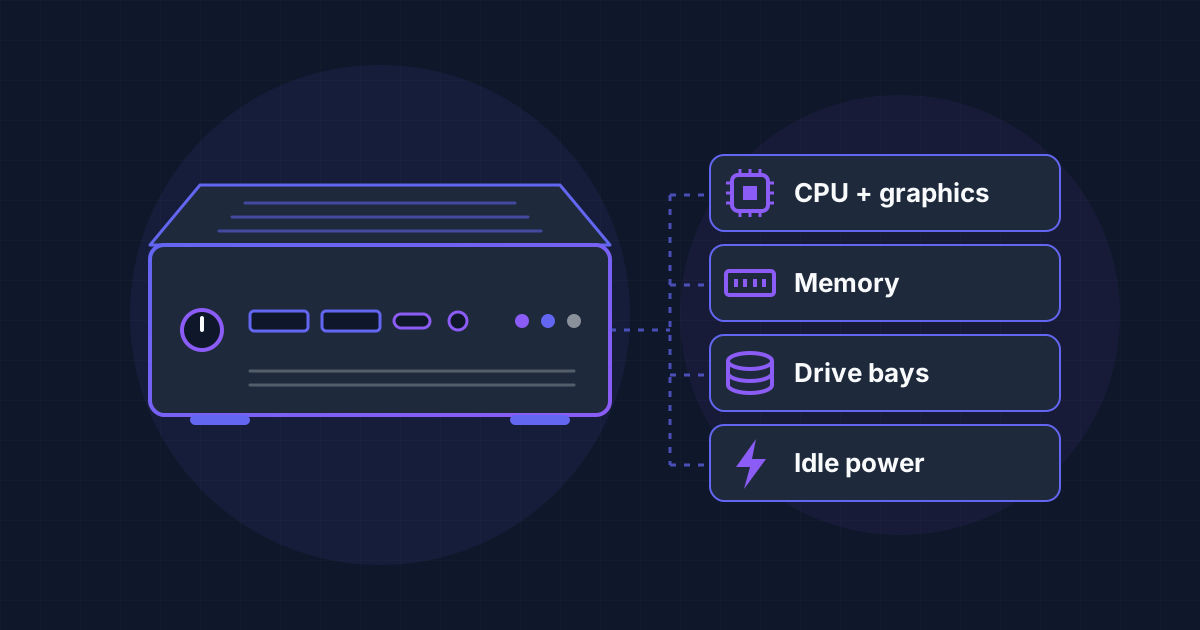
What to Look For in a Home Server Mini PC
- ✅A recent Intel CPU with integrated graphics and Quick Sync Video (Intel N100 or newer, or a 12th-generation-or-later Core) if you plan to stream video
- ✅16 GB of RAM if you want photos, media and a handful of other containers on one box; 8 GB is the floor
- ✅An NVMe SSD for the system plus a second internal drive slot for your data
- ✅Wired Ethernet, and a firmware that boots in UEFI mode
- ✅Low idle power, because the machine runs 8,760 hours a year
Why a Mini PC and Not a Raspberry Pi, an Old Desktop or a NAS?
The Raspberry Pi used to be the default first home server. That advice has aged, for two reasons.
The first is price. Raspberry Pi has raised prices more than once in 2026 because of memory costs. On November 2, 2026 the company announced that the 16 GB Raspberry Pi 5 was going up by $80 to $385, citing a lack of alternative supply for 16 GB memory, and described the situation as difficult but temporary. That is the bare board, before a power supply, case, cooling and storage adapter.
The second is what the software projects themselves say. Jellyfin's hardware guide states that most single-board computers, the Raspberry Pi 5 included, are too slow for a good experience because they often lack proper support for hardware acceleration. Immich's documentation says hardware transcoding is currently not supported on the Raspberry Pi. A Pi is still an excellent host for light services: Pi-hole asks for 512 MB of RAM, and Home Assistant supports the Raspberry Pi 4 and 5 with at least 2 GB.
An old desktop tower works and costs nothing if you already own one, but it is usually larger, louder and hungrier at idle. A prebuilt NAS appliance gives you drive bays, but Jellyfin's guide warns that the software environment on most of them makes third-party software more challenging to install and that they may have low-end processors that are too slow. A mini PC sits in the middle: a normal x86-64 computer that runs any Linux distribution.
Start From the Apps You Want to Run
Hardware requirements are published by the projects. Here is what the official documentation asks for, and what that means when you are comparing product pages. If you have not decided what to run yet, our list of the 15 best self-hosted apps for a home server is a good place to start.
| App | What the official docs ask for | What to check on the mini PC |
|---|---|---|
| Jellyfin (media) | 8 GB RAM (4 GB may be enough on Linux without a desktop), 100 GB SSD for the system and transcoding cache, a GPU for transcoding; x86 CPUs need SSE4.1 from version 10.11 | Intel N100 or newer integrated graphics; wired Ethernet |
| Immich (photos) | 6 GB RAM minimum, 8 GB recommended; 2 CPU cores minimum, 4 recommended; database on local SSD | 8 GB or more, an SSD for the system, a second drive for the library |
| Home Assistant (smart home) | 64-bit system that boots in UEFI mode with Secure Boot disabled; boot drive with 512-byte logical sectors | UEFI firmware and a boot SSD that is not native 4K |
| Frigate (camera NVR) | Intel CPU with AVX and AVX2 that can run Debian; a supported detector such as OpenVINO on Intel graphics | Recent Intel CPU; a second network port is useful for cameras |
| Pi-hole (DNS ad blocking) | 512 MB RAM, 2 GB of free disk space minimum (4 GB recommended) | Nothing special: any mini PC is far more than enough |
| OpenMediaVault (NAS system) | Runs with as little as 1 GiB of RAM (4 GiB recommended for newcomers); the system drive cannot officially hold shared data | Two drives: one for the system, one for data |
| CasaOS (app dashboard) | amd64, arm64 or armv7; Debian 12 is the tested and recommended base | Any x86-64 mini PC |
The two demanding rows are media and photos. If Jellyfin and Immich are on your list, they set the specification and everything else fits in the leftover capacity. If they are not, almost any mini PC sold today will do, and you should buy on idle power and price.
CPU: Why the Intel N-Series Keeps Coming Up
For a media server the processor matters less for its raw speed than for its integrated graphics. When a phone or TV cannot play a file directly, the server has to transcode it on the fly, and Jellyfin's documentation is blunt: not having a GPU is not recommended, because transcoding video on the CPU is very performance demanding.
Jellyfin's hardware guide names the Intel N100 in its list of recommended processors for integrated graphics, alongside the Core i5-11400 and Pentium Gold G7400 "or newer". Intel's specification page for the N100 lists 4 cores, 4 threads, a 6 W thermal design power, Quick Sync Video and AVX2. Its successor, the N150, launched in the first quarter of 2025 with the same core count and the same 6 W figure. If you need more headroom, the Core i3-N305 doubles the count to 8 cores at 15 W.
Three warnings from the same documentation are worth carrying into sale week:
- Older low-power Intel chips are excluded. Jellyfin excludes Intel J, M, N and Y series processors up to the 11th generation because they use a different architecture from higher-end parts. The Celeron N5105, a Jasper Lake chip Intel launched in 2021, is in that group, and Jellyfin's Intel guide says Jasper Lake graphics only support low-power encoding mode, which needs extra firmware configuration on Linux. Check the exact model, not just "Intel N-series".
- AMD integrated graphics are not recommended for Jellyfin. The guide says AMD is not recommended if you intend to use integrated graphics, citing encoder quality and driver support. A Ryzen mini PC is a fine general-purpose server, just not the one to pick for transcoding.
- Do not obsess over AV1. Jellyfin's guide says you should not worry about AV1 when choosing components. The capability it tells you to look for is HEVC 10-bit decoding.
For cameras, Frigate's hardware page says anything with an Intel CPU with AVX and AVX2 that can run Debian should work fine, and its author names an N100 mini PC with two network ports as a current favourite. The same page currently advises avoiding one N150-based model because of known compatibility issues, a good reminder to read a project's hardware page on the day you buy.
What About a Used Business Mini PC?
Off-lease office mini PCs are a legitimate budget route, with one check: the CPU generation. Jellyfin removed Intel 7th to 10th generation processors from its recommended list because Intel deprecated the toolkit for those generations, while adding that existing owners should continue to use them. Jellyfin 10.11 requires SSE4.1 on x86, and Immich's machine learning container requires the x86-64-v2 feature level. A used machine with an older Core processor will run DNS, dashboards and file sharing happily; for a new media server, the documentation points you at newer chips.
RAM: 8 GB Is the Floor, 16 GB Is Comfortable
Add up what the projects ask for. Immich wants 6 GB minimum and recommends 8 GB; it can run on 4 GB only with its machine learning features disabled. Jellyfin asks for 8 GB, or 4 GB on a Linux server without a desktop. Pi-hole needs 512 MB. If you want virtual machines, Proxmox VE asks for at least 2 GB for itself plus whatever you assign to guests.
These figures are per application, so a box that runs photos, media and other containers together has little margin at 8 GB. That is why 16 GB is our default recommendation.
Two things to check before paying for more. Intel's specification pages list a maximum of 16 GB and a single memory channel for the N100, N150 and Core i3-N305, so treat larger configurations of those chips as outside what Intel documents. And look at whether the memory is a replaceable module or soldered: with memory prices where they are this year, a machine you can upgrade later is worth more than it used to be.
Storage and Drive Bays
Plan for two kinds of storage.
The system drive. Jellyfin recommends a 100 GB SSD for the operating system, its own files and the transcoding cache. Immich says its Postgres database should ideally sit on local SSD storage and never on a network share. Any NVMe SSD of 256 GB or more covers both. One trap if you plan to install Home Assistant OS directly on the machine: its documentation says the boot medium must support 512-byte logical sectors, and that drives with native 4K sectors, including some NVMe SSDs, cannot boot it.
The data drive. Photos, films and documents should live on a separate disk. OpenMediaVault makes this a rule: its system drive cannot officially be used for shared folders or user data. Immich notes that thumbnails and transcoded video can add 10 to 20 percent on top of the size of your library, so size the disk with that margin. If you buy hard drives, Jellyfin's guide says to avoid models that use shingled magnetic recording (SMR).
In practice that means looking for one of these layouts:
- Two M.2 slots, or one M.2 slot plus a 2.5-inch SATA bay. Enough for a system SSD and one data drive.
- A mini PC with 3.5-inch bays. Some mini PCs add 3.5-inch hard drive bays to the same kind of processor. This is the layout to choose if your library is measured in terabytes.
- A mini PC next to an existing NAS. Jellyfin's documentation accepts a network share for media storage, so the mini PC can do the computing while an older NAS holds the files. Keep databases on the local SSD.
Whichever layout you choose, a second drive in the same box is not a backup. Budget for an external copy of anything you cannot recreate.
Idle Power: The Cost You Pay Every Hour
The arithmetic is simple: watts multiplied by 8.76 gives kilowatt-hours per year. A machine that idles at 10 W uses 87.6 kWh a year; one that idles at 40 W uses 350.4 kWh. Multiply by the price per kWh on your own electricity bill to see the difference, then multiply by the years you expect to keep it.
Be careful with the numbers on product pages. The 6 W figure for an N100 is Intel's thermal design power for the processor, not the consumption of the whole computer at the wall, which also includes memory, drives, network and power supply losses. Vendors rarely publish idle draw, and we are not going to quote figures we have not measured. Look for independent measurements of the exact model, and remember that every spinning hard drive adds to the total.
Networking, Firmware and Other Small Print
- Ethernet. Jellyfin recommends connecting the server to your network by cable. Treat Wi-Fi on a mini PC as a convenience for setup, not as the server's connection.
- UEFI. Home Assistant OS needs UEFI boot with Secure Boot disabled. Most systems from the last ten years support UEFI, according to its documentation.
- Windows is preinstalled on most models. Frigate's hardware page points out that many mini PCs ship with Windows, so you will be installing Linux yourself.
- Restart after a power cut. Look in the firmware for an option to power on automatically when mains power returns.
Three Builds, by What You Want to Run
Starter: DNS, Dashboards, Smart Home
- 🟢Runs Pi-hole, Home Assistant in a container, a password manager and a few small apps
- 🟢Any current low-power x86-64 processor, 8 GB of RAM, one SSD
- 🟢Buy on idle power and price; a used business mini PC fits here
Family Server: Media and Photos
- 🟢Runs Jellyfin and Immich together, plus everything in the starter build
- 🟢Intel N100 or newer with Quick Sync, 16 GB of RAM, an NVMe system SSD and a second internal drive
- 🟢The sweet spot for most households, and the configuration to watch for during sales
Storage and Cameras: The Small NAS
- 🟢Adds a large library, camera recording with Frigate, or virtual machines
- 🟢An 8-core chip such as the Core i3-N305 or a recent Core processor, 16 GB or more, 3.5-inch bays, two network ports
- 🟢Expect higher idle power from the hard drives, and check the processor's documented memory limit
How to Judge a Black Friday Deal
We have not listed specific offers because none could be verified at the time of writing. This checklist works on any listing:
- Find the exact processor model and look it up on the manufacturer's specification page. "Intel 12th Gen N-series" and "Intel Celeron" describe very different chips.
- Compare with the vendor's own store. The price on the manufacturer's site, checked the same day, is the reference. A marketplace "was" price is not.
- Read the configuration, not the headline. The same model name is often sold with different amounts of RAM and different SSD sizes. Memory is expensive this year, so a low headline price may simply mean a small configuration.
- Count the drive slots in the specification table or the manual, not in the photos.
- Check the project's hardware page for the apps you care about, on the day. Compatibility notes change, as the Frigate example above shows.
- Check the return policy. Noise and idle power are hard to judge before the machine is on your shelf.
What to Install First
Once the box arrives, wipe Windows and install a server Linux distribution without a desktop. Debian 12 is a safe choice, and it is the system CasaOS lists as tested and recommended. CasaOS adds a web dashboard and an app store on top of Docker with one command from its README:
curl -fsSL https://get.casaos.io | sudo bashIf storage is the main job, install OpenMediaVault instead; it is a complete Debian-based system that conflicts with desktop environments, so give it a dedicated machine or virtual machine. If you prefer to understand each piece, skip the dashboard and follow our Docker Compose basics for beginners, then work through the complete beginner's guide to self-hosting for networking, backups and remote access.
Frequently Asked Questions
Is an Intel N100 enough for Jellyfin?
Jellyfin's own hardware guide lists the Intel N100 among its recommended processors for integrated graphics. We do not quote a number of simultaneous streams because it depends on your files and clients, and the Jellyfin documentation does not give one either.
How much RAM does a home server need?
8 GB is the practical minimum if Immich or Jellyfin is on the list, based on their documented requirements. 16 GB leaves room for both plus other containers.
Mini PC or Raspberry Pi for a home server?
A Raspberry Pi suits light, always-on services such as Pi-hole or Home Assistant. For media and photos, Jellyfin's documentation calls most single-board computers too slow and Immich does not support hardware transcoding on the Raspberry Pi. With the 16 GB Raspberry Pi 5 announced at $385 on November 2, 2026, compare total cost carefully before assuming the Pi is the cheaper route.
Should I wait for Black Friday to buy?
Decide on the specification first, note the vendor's regular price today, and buy when a listing that matches drops below it. If no such offer appears, nothing is lost by buying later.
Our Verdict
The best mini PC for a home server is the one whose processor, memory and drive slots match the apps you will actually run. For most households that is a low-power Intel machine with Quick Sync graphics, 16 GB of RAM, an NVMe system drive and room for a second disk. Start from the software requirements, verify the exact processor, measure deals against the vendor's own price, and you can ignore the countdown timers.